

On-boarding process for court setup
Updated January 16, 2025
After creating a new account for your club, it’s time to set up some primary information. There are 6 steps along the process, they are:
- Basic Information
In this section, fill in your club information such as your club's name and logo. Also fill in the country, city, address, and postal code where your club is located. And finally, the language that your club uses. A few notes for this section:
- Though there is no character limit for your club's name, we suggest writing a short name.
- There’s no strict ratio rule for your club’s logo. You’ll see your logo fitted next to your club’s name on the top of your dashboard later.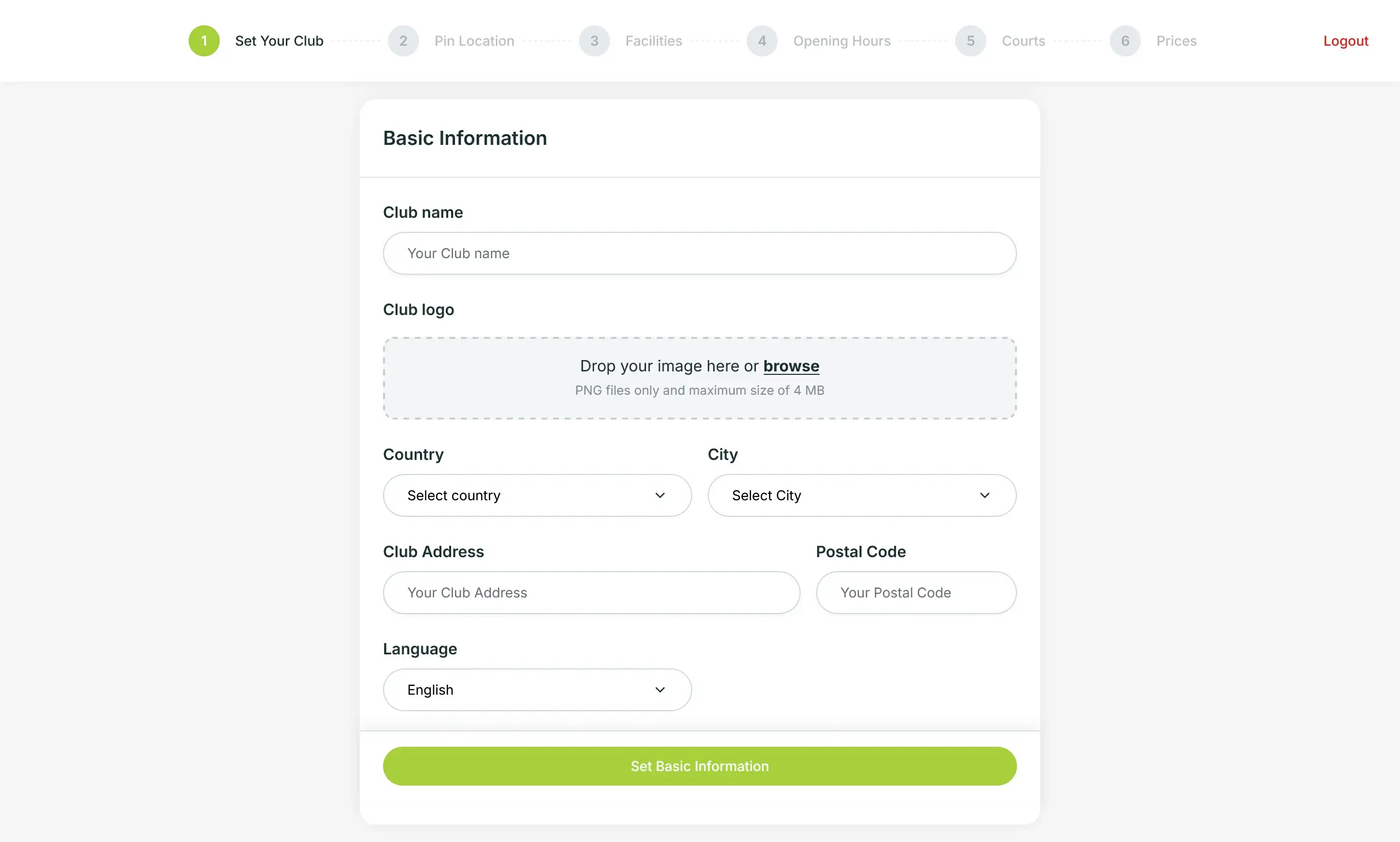
- Pin Location
Mark your club’s location on the map. You can set the blue pin directly by clicking on the maps. You can zoom in, zoom out, and search for a location easily.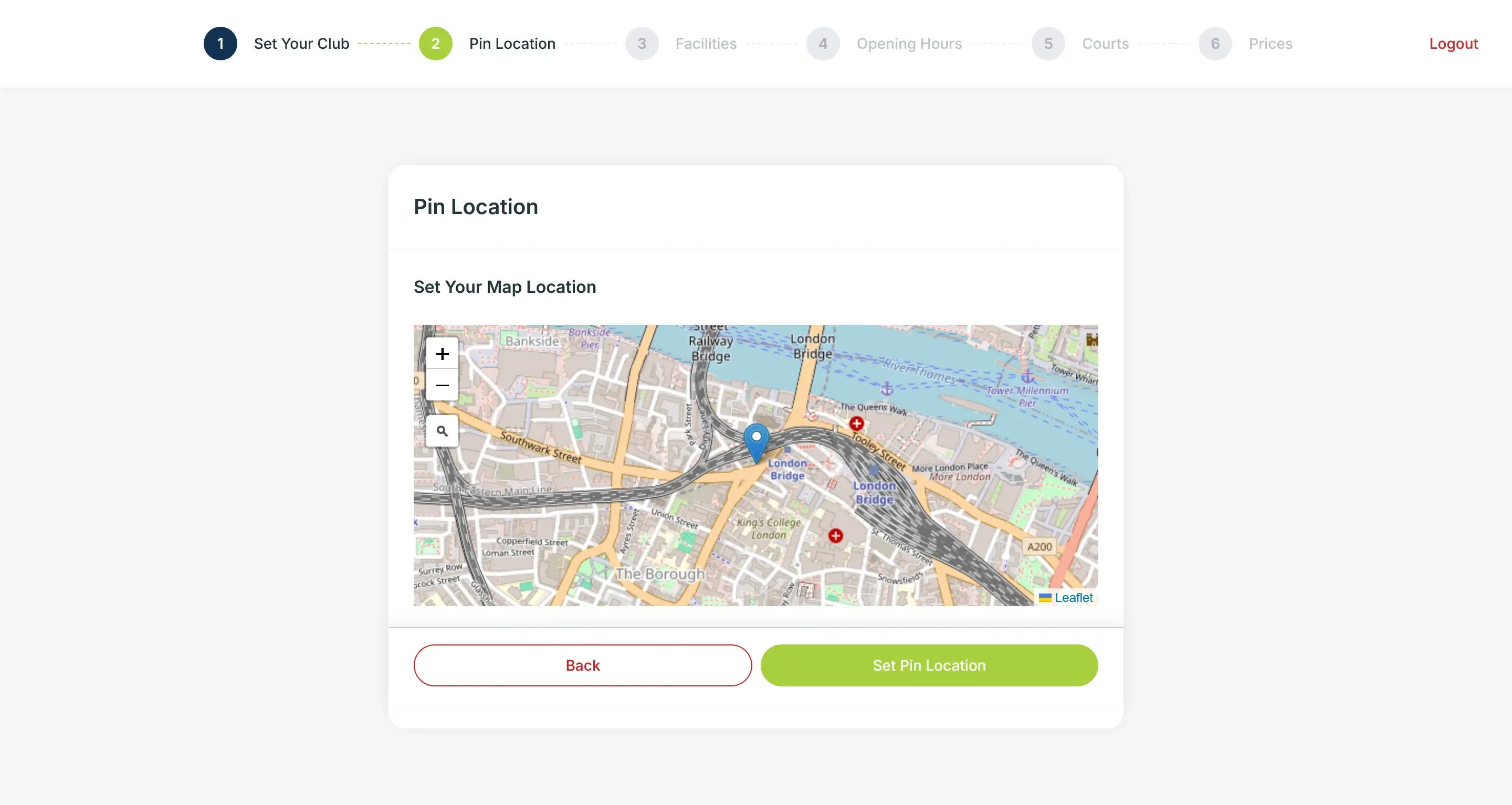
- Facilities
Pick the option that fits your club's available facilities.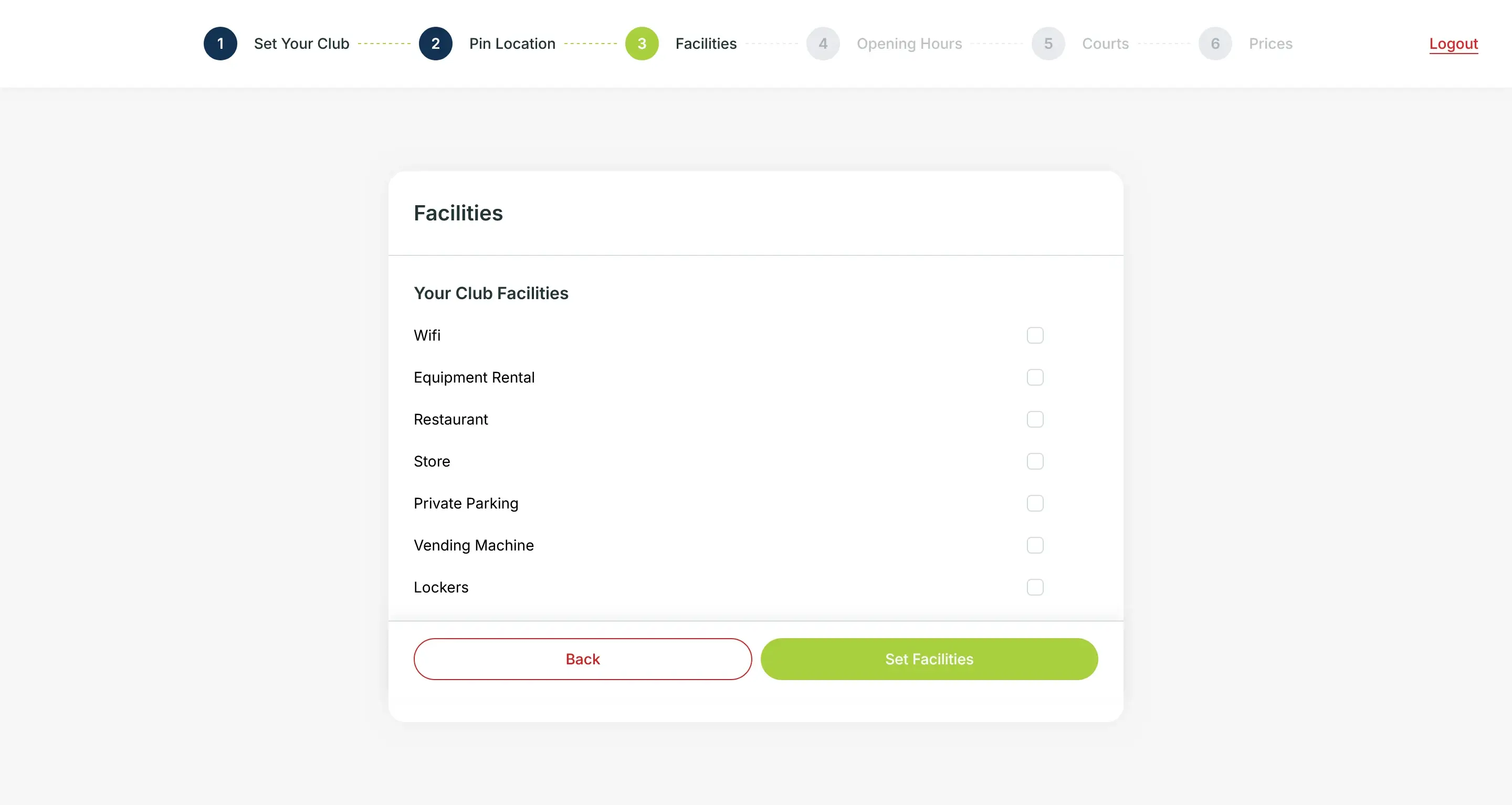
- Open Hours
Determine your club’s open hours. Some clubs have opening hours that are quite different. For example, the opening hour is from 08.00 and closes at 02.00 AM the next day. For this similar case, you can set the time as it is, 08.00-02.00.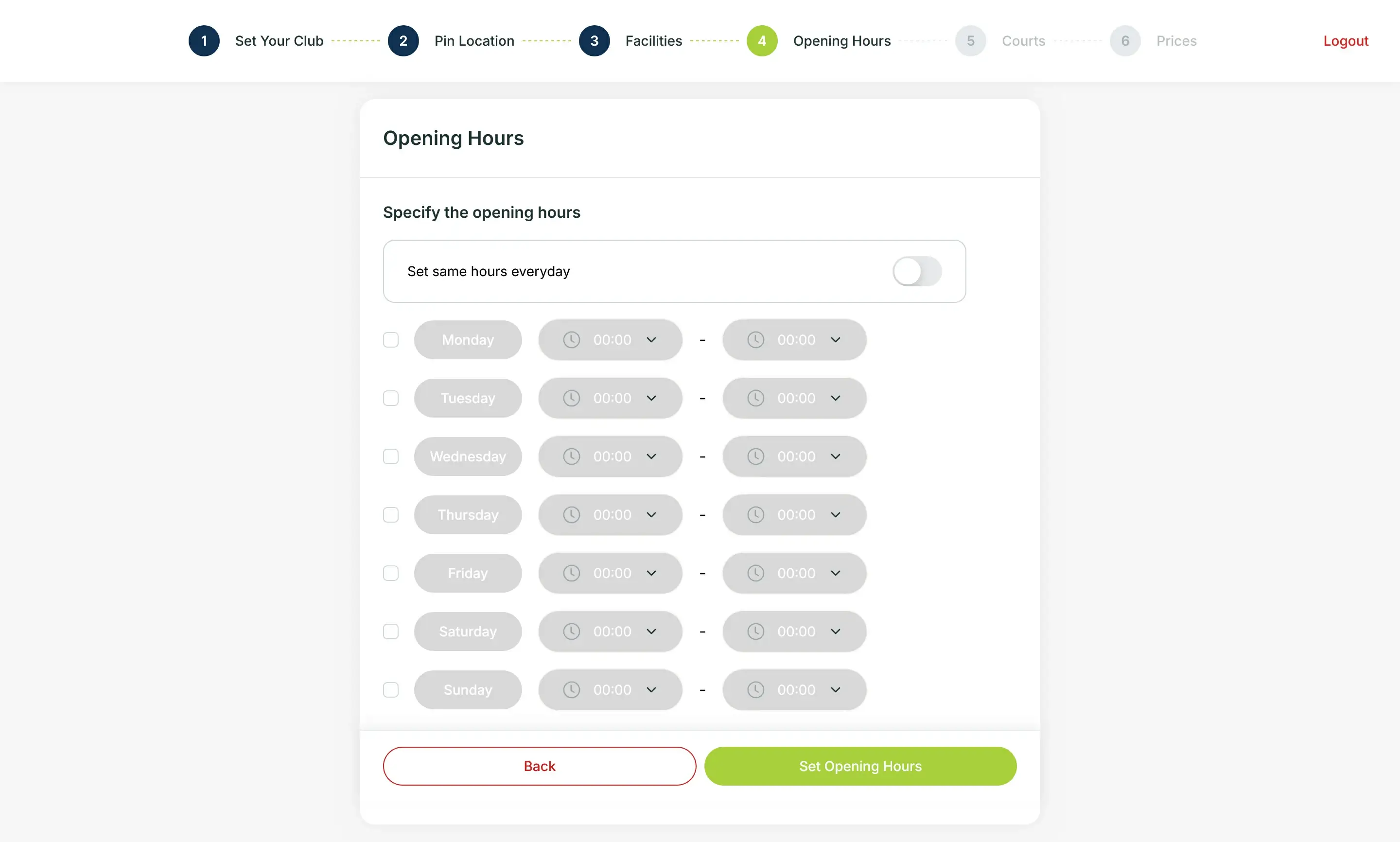
- Courts
Add information that matches your court's specifications such as type, indoor/outdoor, surface, and court total. Here, you can add and adjust more than one court detail.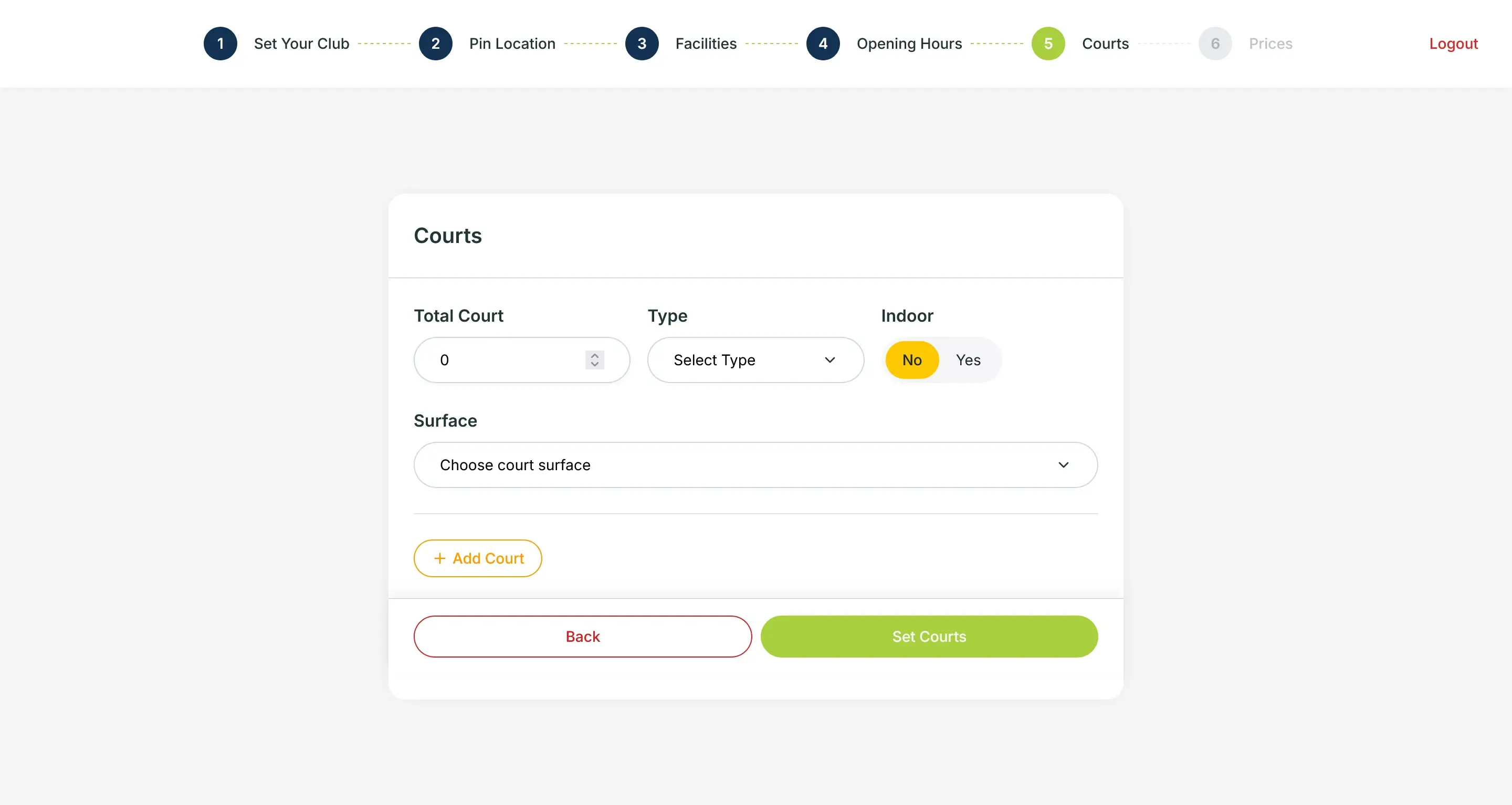
- Prices
Set the price per thirty minutes for all your courts. In our Courtwin system, the price of each booking is calculated per thirty minutes.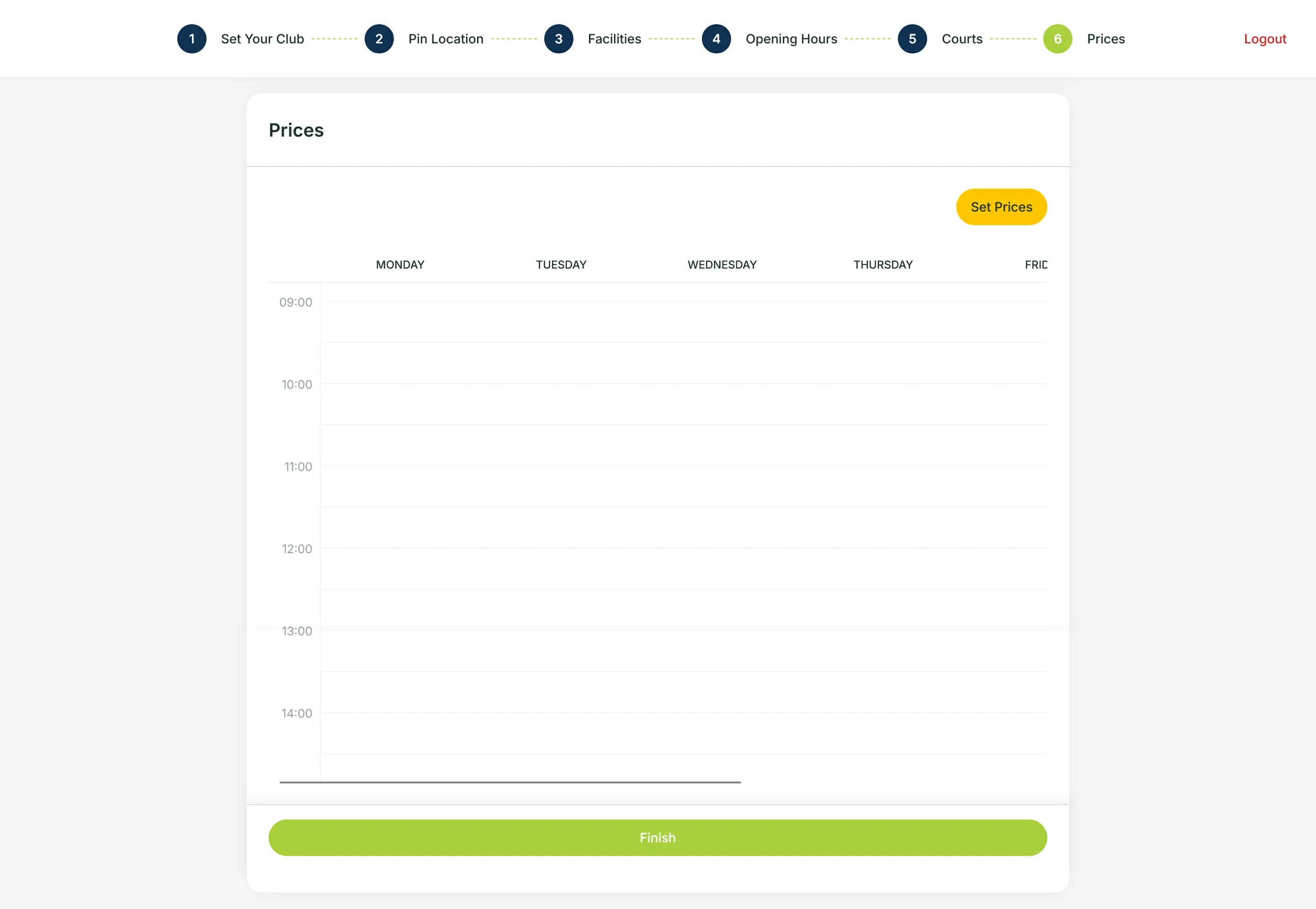
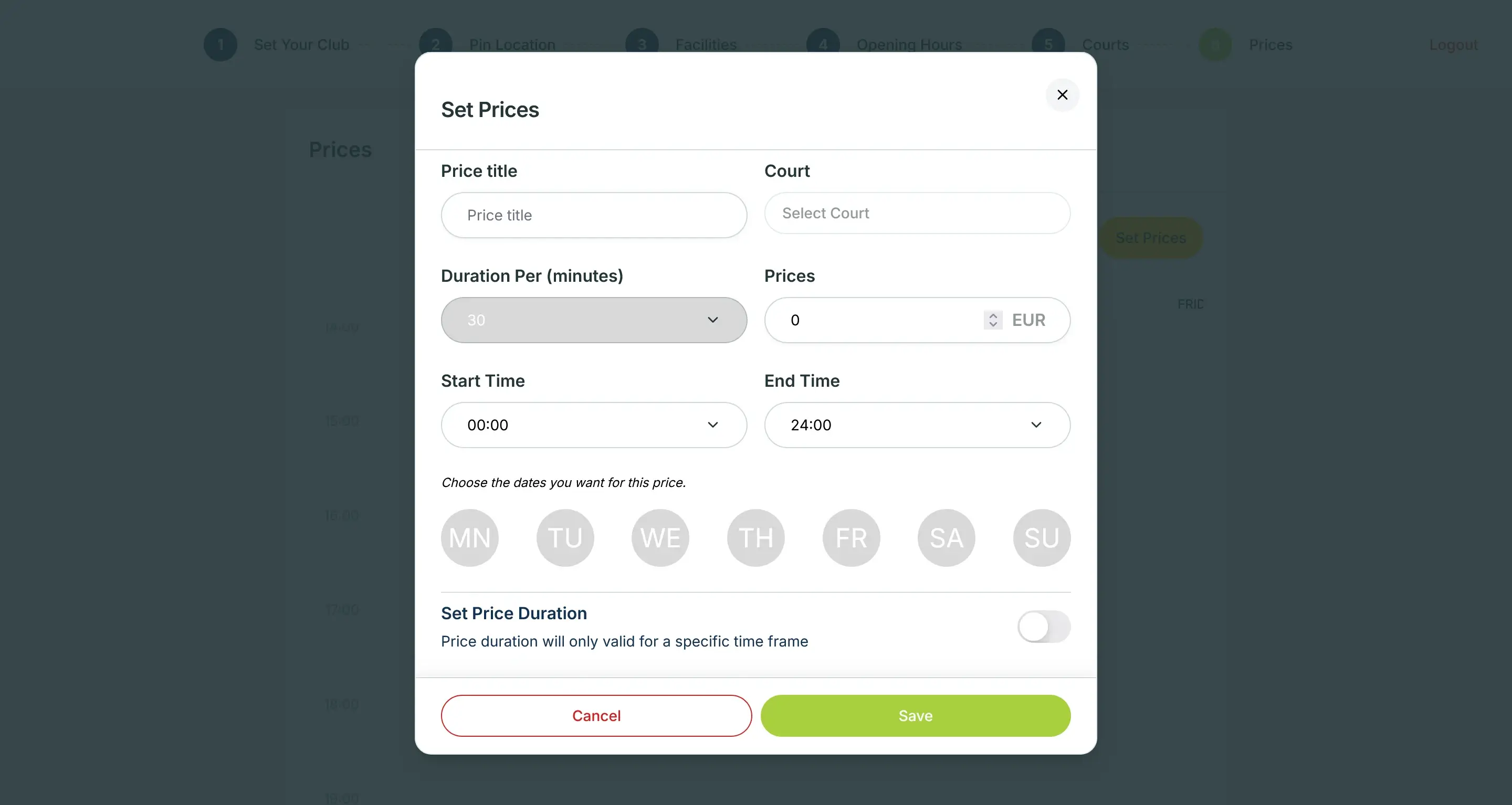
To set the price, you need to fill in the price title, select the court, set the price, start time, end time, and day for the price. You can also turn on the toggle of "Set Price Duration" for a promotional offer (if any). Again, this price setup can be edited in the Settings.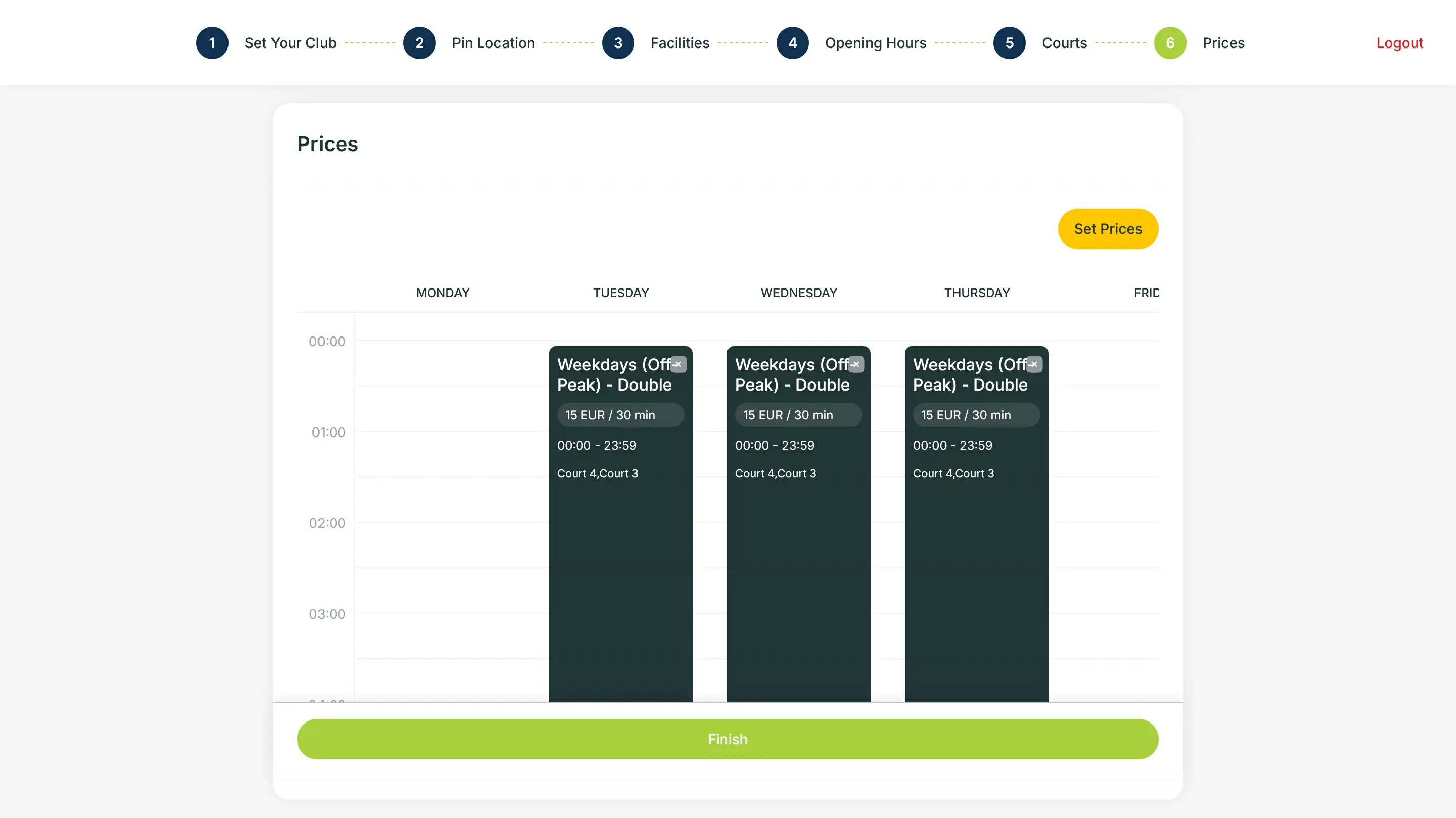
Did this guide help?