

Edit and Cancel a Reservation
Updated January 16, 2025
To edit or cancel a reservation, you can go to the Reservations page and directly select the reservation block you want to edit or cancel. Or, you can also edit or cancel a booking by clicking the booking list on the Bookings page.
Cancelling a Reservation
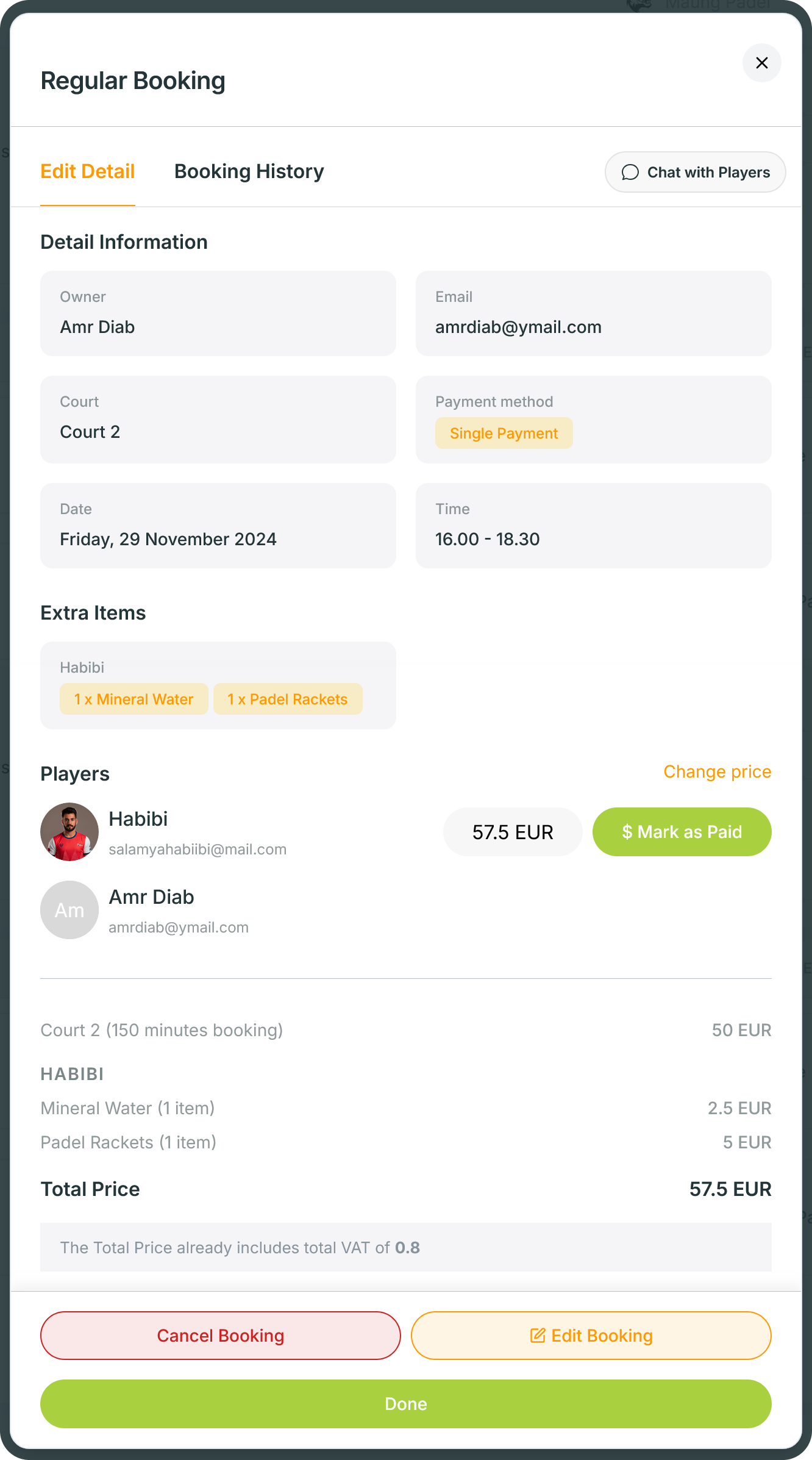
- In the Reservations or Bookings page, select the reservation you want to cancel. Once the pop-up appears, make sure that the booking information is correct.
- Then, click the Cancel Booking button, and confirm the cancellation on the next pop-up message.
Editing a Reservation Detail
- In the Reservations or Bookings page, select the reservation you want to edit. Once the pop-up appears, make sure that you are viewing the correct booking details you want to edit.
- Then, click on the Edit Booking button.
- You can only edit the Start Time, End Time, Court, Players, and Extra Items.
- Save the updated information by clicking the Save Changes button.
ℹ️ From the admin side, there’s no time limitation to cancel or edit a booking/reservation. This means, you can edit or cancel the booking anytime before the event starts.
Did this guide help?