

Create Membership
Updated January 15, 2025
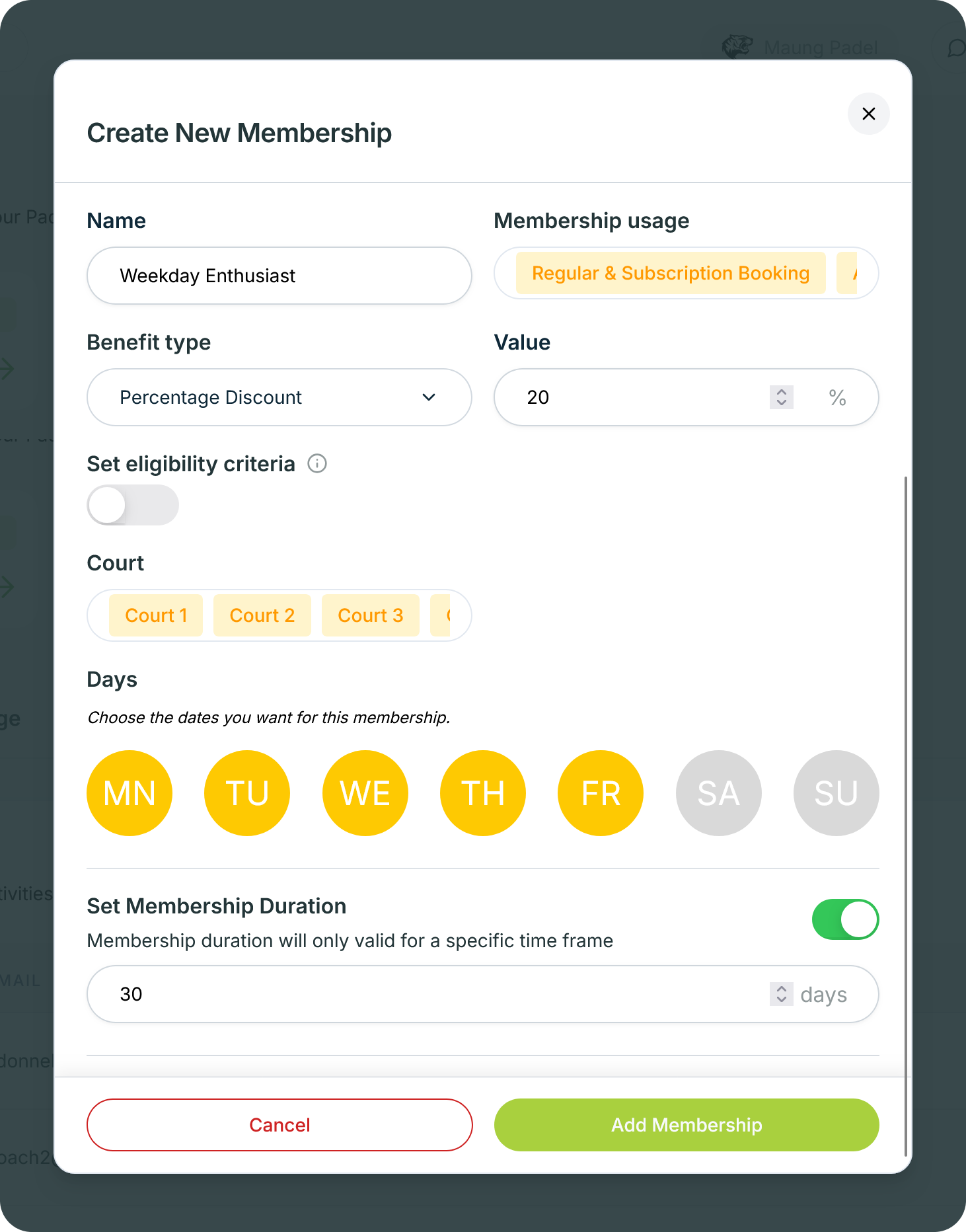
Go to the Customers page, then click the Add Membership button in the upper right corner. After the pop-up appears, fill in each field:
- Name
Give the membership a title/name. - Membership Usage
Can the membership be used for all products? You can choose more than one between booking, lesson, course, or activity. - Benefit Type
You can choose what kind of benefits you will get from the membership you create. Benefits can be a discount of a certain amount, a discount of a certain percentage, a flat price for all kind of bookings, or a cheaper hourly booking price offer. - Value
In this field you can determine the value of the benefits offered. - Set eligibility criteria
You can make a minimum booking as a requirement for membership activation. - Court
You can determine which court can be used for membership users. - Days
You can also determine on which days the membership can be used. - Set Membership Duration
You can create membership validity period rules by activating the toggle/switch in this section and specifying the period in days.
Click on the Add Membership button to save and create membership for your club’s customers.
Did this guide help?